
You can shop on any device with GrownBy. If you are using a tablet or phone, please download the app for the best experience. The first step is to download the GrownBy app on your Apple or Android device.
On a computer, navigate to grownby.com.
Finding a Farm
From the Marketplace home page, search for a farm by name using the search bar ("What farm are you looking for?"). You can also scroll down to the Farms selling near ____ section and enter your location to see farms near you. Each farm card shows its name, a summary, and whether it offers delivery, pickup, or both.
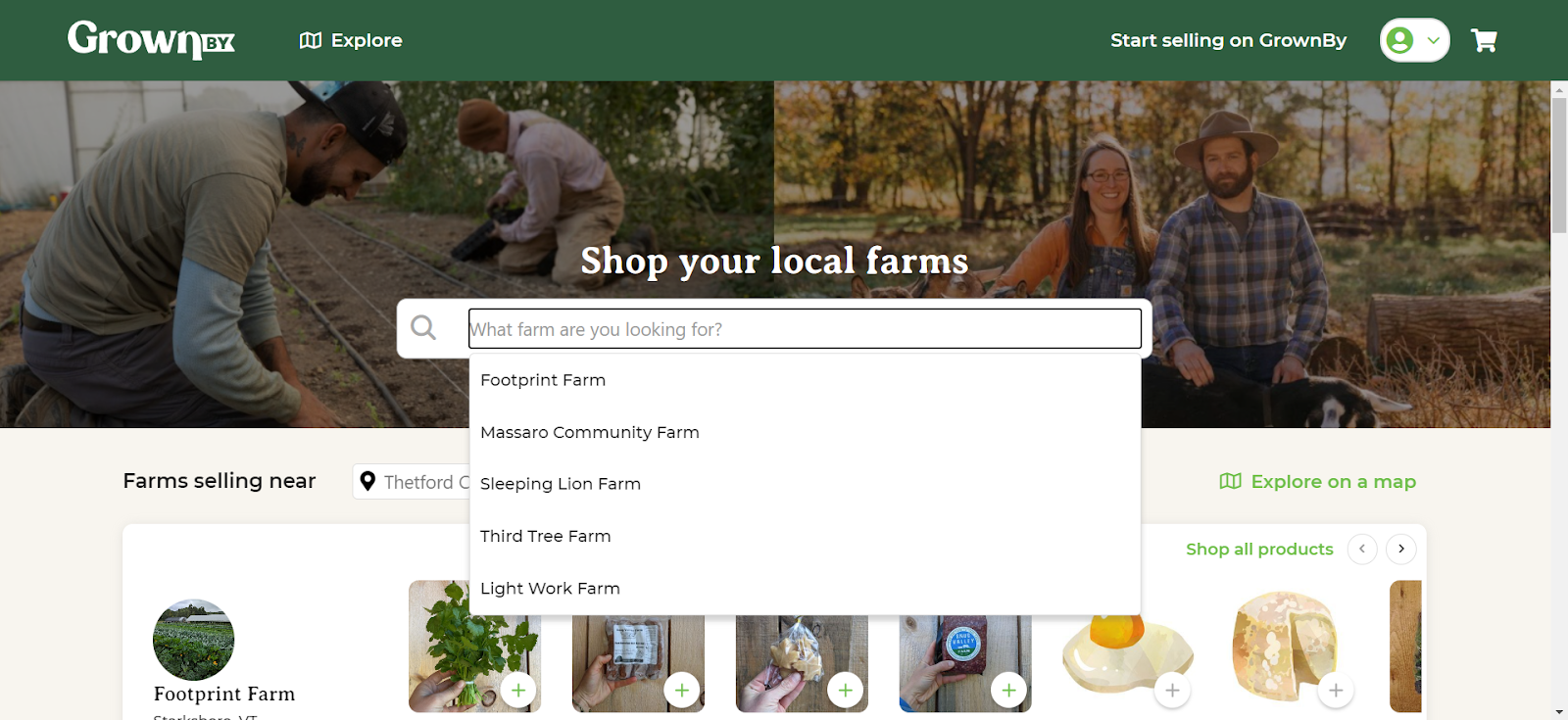
You can also click Explore on a map to browse farms visually. The map includes filters such as Farms selling now, Show pickup locations, and Farms that accept SNAP benefits to help you find what you're looking for.
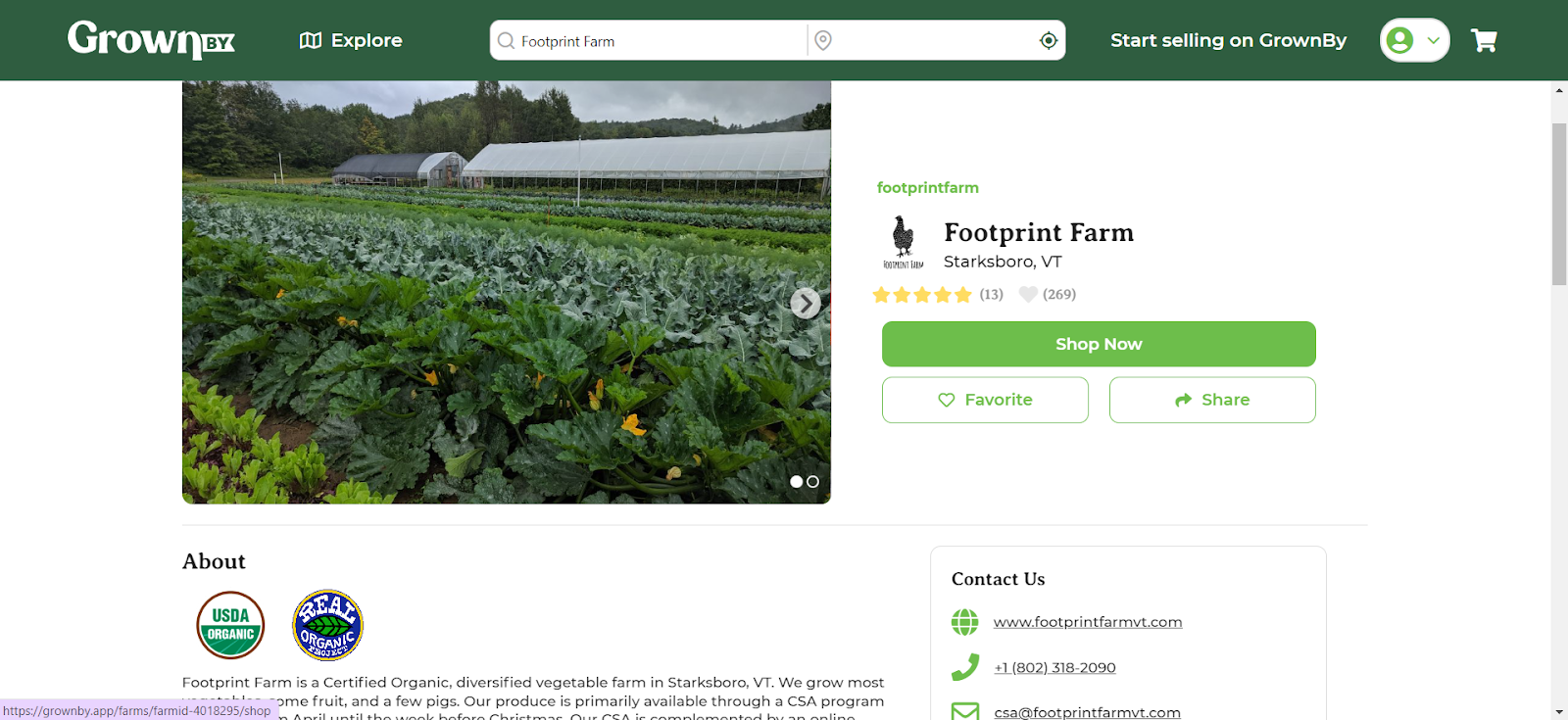
Clicking on a farm will bring you to the farm's profile page where you can read about them, view their contact information, etc. Please leave a review and favorite any farms and farmers that you know and love while you're here! Then, click Shop Now:
Adding Items to Your Cart
In the shop, select the items you'd like to purchase. Click + to add them directly to your cart, or click on the image to see more details. If products are available for multiple locations or schedules, you will be prompted to select those in a pop-up screen. When you're ready, click Cart at the top right of your screen or in the right-hand sidebar cart:
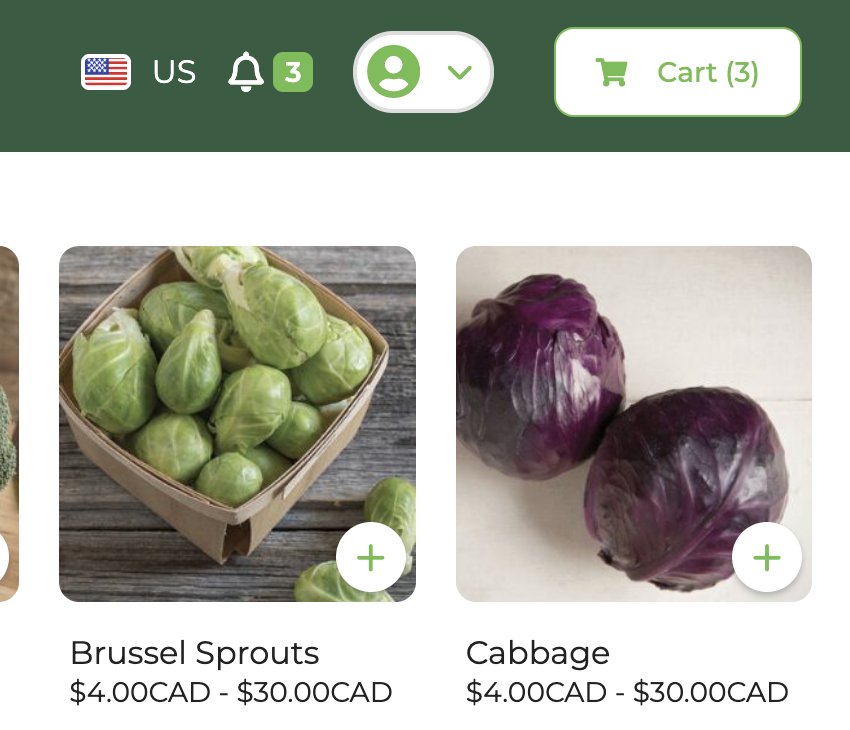
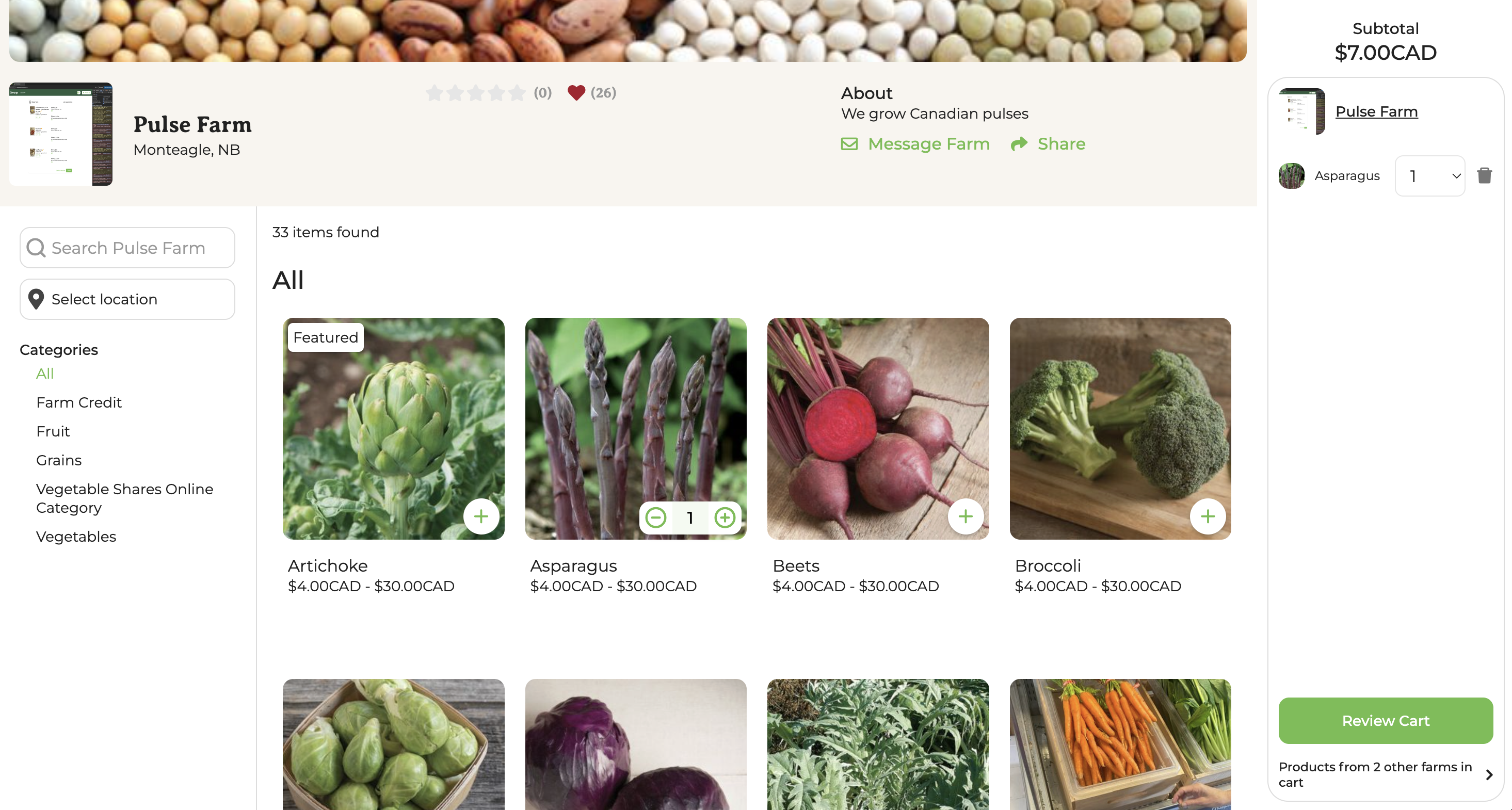
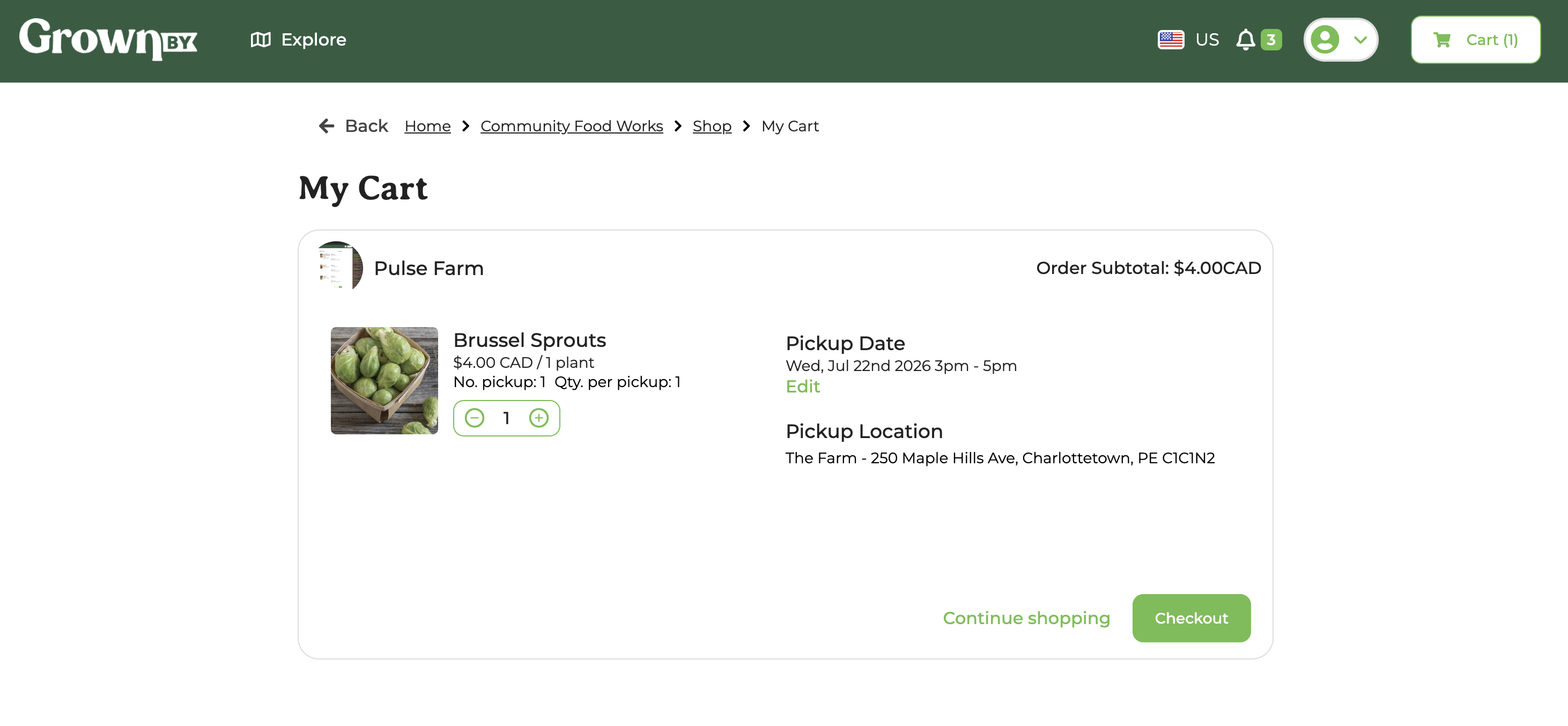
Your cart can hold items from multiple farms at once. You can check out one farm at a time, or use Check out all farms to pay for everything together. Checking out all farms at once is unavailable while any farm in your cart is below its order minimum.
The cart is where you set the details of each item: the pickup or delivery dates and location, and, for shares that offer installments, whether you are paying in full or per pickup.
Checkout
Review the items in your cart, then click Checkout to proceed:
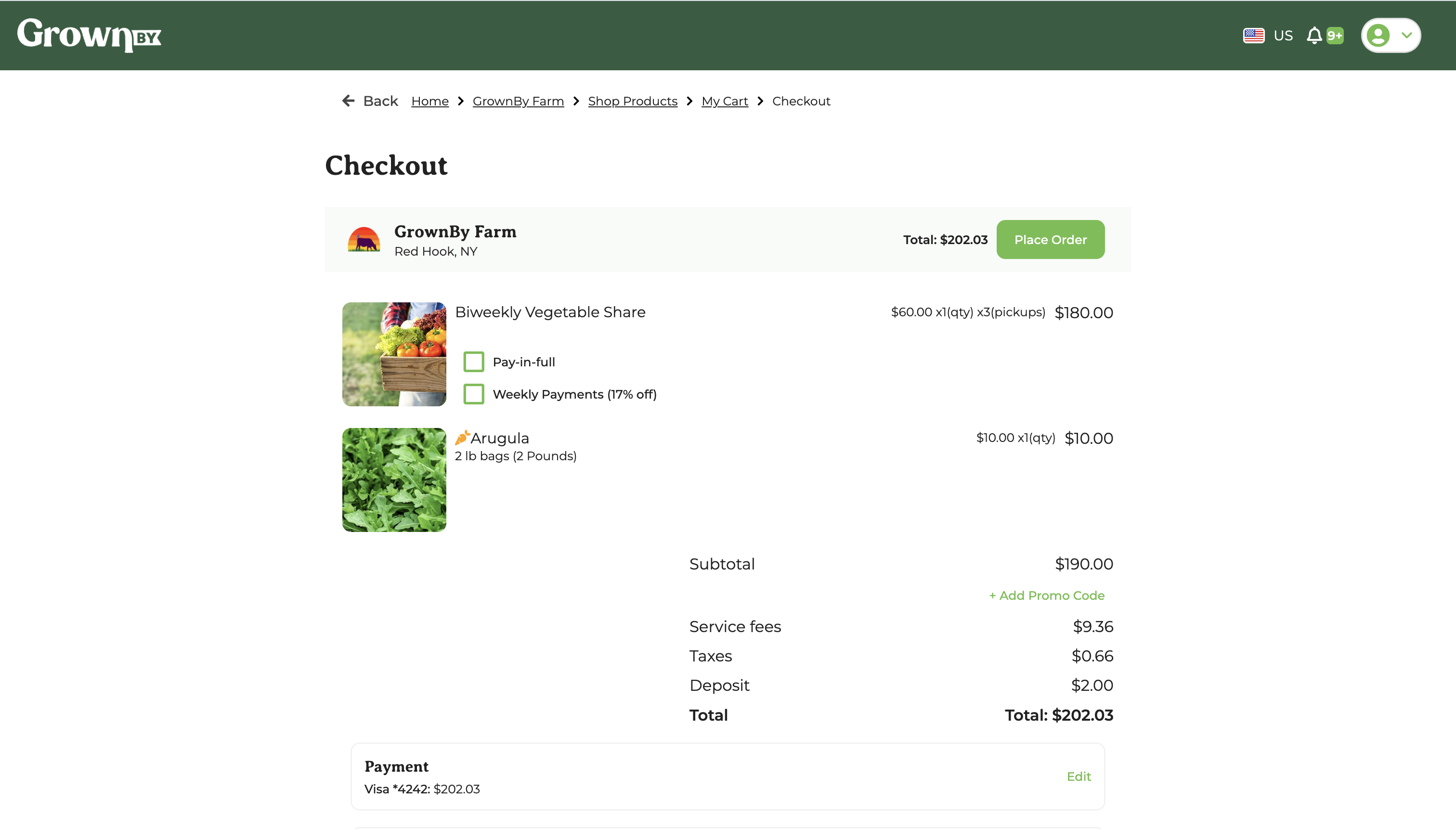
On the checkout page, confirm your delivery address or pickup location, review your order total, and click Place Order. The total includes the farm price plus any delivery fee the farm sets. Some farms require shoppers to cover a service fee (listed above your total if applicable). You can also add an optional tip at checkout.
Payment
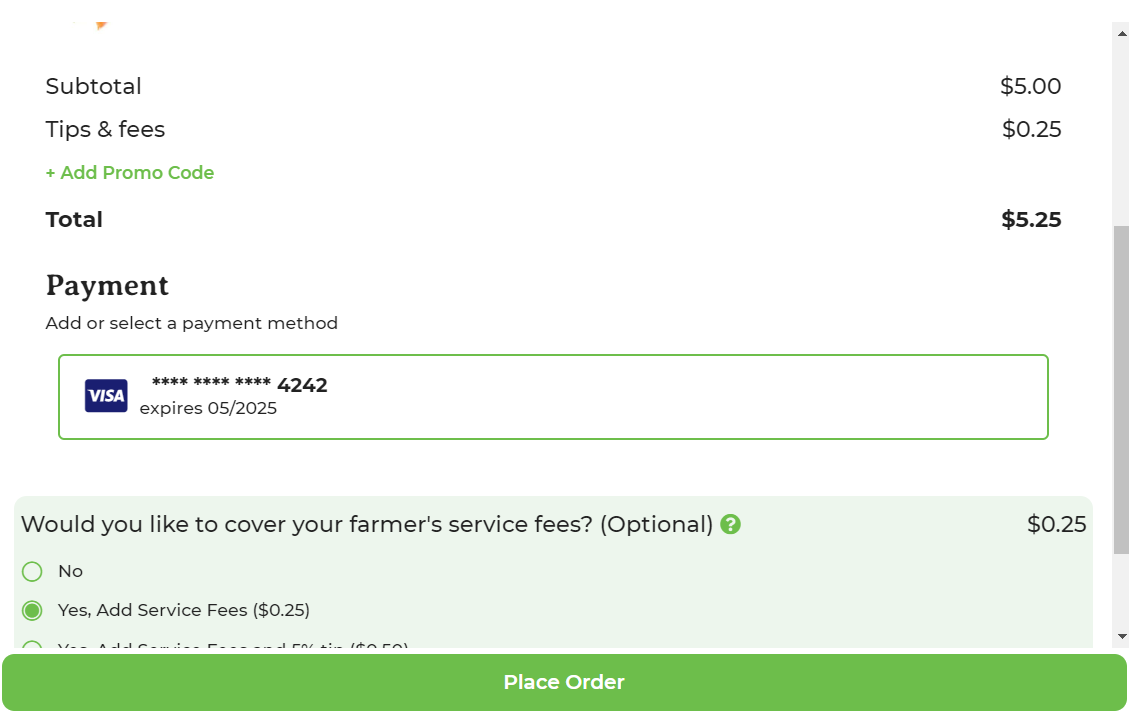
The next screens will take your credit card details. If you are hoping to use SNAP Online (if your farm is registered to accept it) or Offline payment, you'll need to click the Add Payment Method button (brand new accounts) or click on the default payment method (if you already have one or more saved) to select that option. Once you have selected a payment method, the Place Order button becomes green and you can click it:
Once you have ordered from a farm, that farm will always appear under Favorite Farms in your account.
After Your Order
You'll see the order under Orders when you click your profile photo in the top right of the page. You'll also get an email thanking you for your order. The farm gets notified immediately and will confirm the fulfillment details. If something's wrong, contact support and we'll help mediate.