
GrownBy allows multiple administrator accounts with different logins. This allows a farm to share info on GrownBy with collaborators without sharing some info that might be more sensitive (like your distribution volunteers don't need to see your Stripe payouts!) Each admin account has a specific role assigned to it which controls what parts of your GrownBy account they have access to.
What are the roles?
There are five roles available: Owner, Admin, Accountant, Distributor, and Seller. Here's what each role can and cannot do:
| Role | Can access | Cannot access |
|---|---|---|
| Owner | Full access to every part of your GrownBy account, the same as an Admin. Only the Owner can re-delegate the Owner role to someone else. | Nothing is restricted. There is only one Owner, the email address that claimed the farm. |
| Admin | Full access to all parts of your GrownBy account. Often farm owners, managers, and other trusted staff. | Nothing is restricted. |
| Accountant | The Dashboard main view, Your Shop, Customers, Invoices, Orders, and Farm Info. | Your Products, Schedules, Locations, and similar catalog and scheduling tools. |
| Distributor | The Dashboard main view, Your Shop, Customers, Orders, Invoices, Distributions (including sign-in sheets, importantly!), and Farm Info. Often a CSA site-manager, delivery driver, or packhouse manager. | Sensitive financial or payment information, such as your Stripe payouts. |
| Seller | The GrownBy Register (point-of-sale) app only, for direct, in-person sales. Only available on farms with a plan that includes the Register feature. Often an employee who runs your farm stand, store, or farmers market table. | Any part of your farm dashboard. Sellers cannot log in to or view the dashboard at all. |
Creating a New Admin
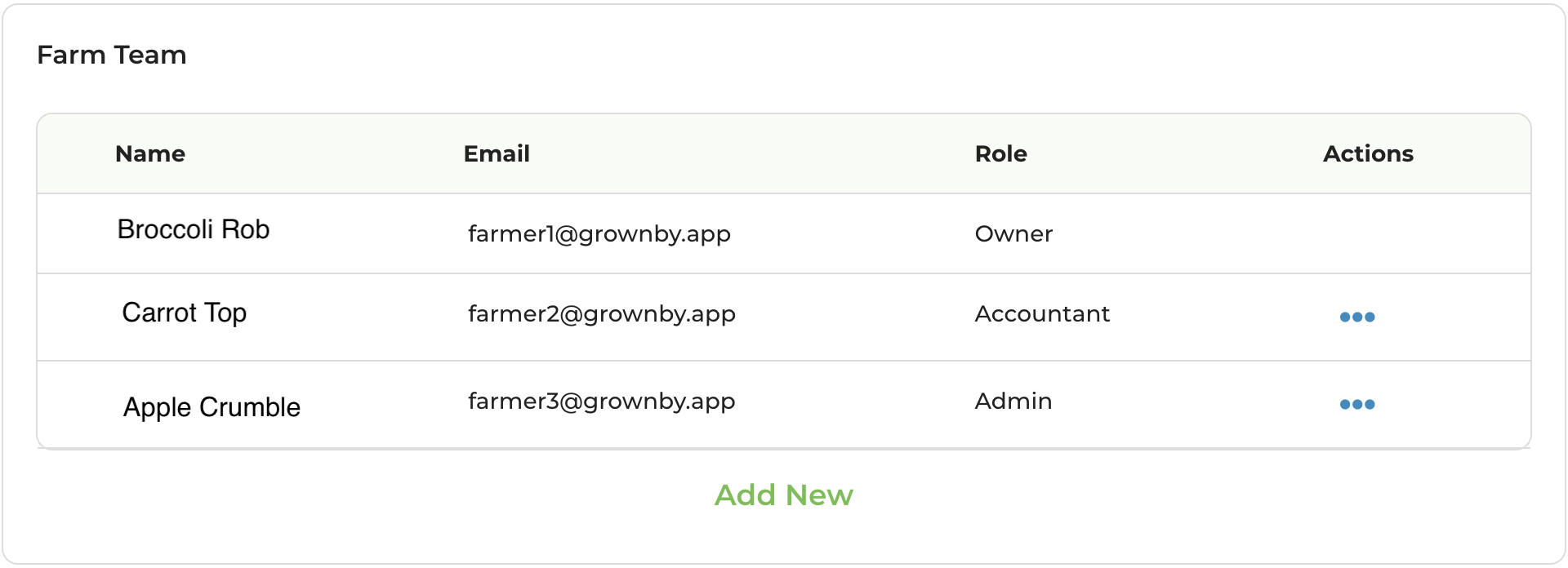
First, go to your dashboard and click Account Settings. Find the Team Members tab and at the bottom of the section click Add New. It looks like this:
When you click on Add New, an Add new Team Member pop-up will appear that looks like this:
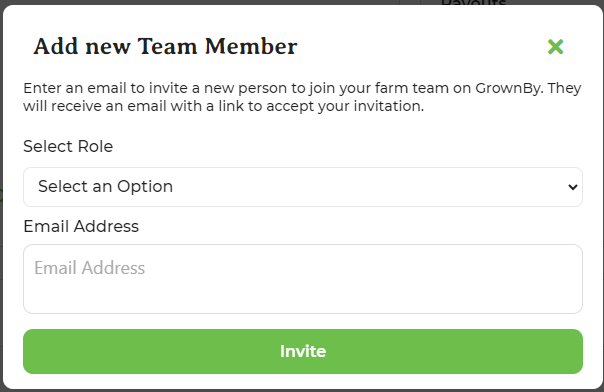
Select the role that you would like to assign and enter the person's email address into the next field.
Click Invite.
The new admin will receive an invitation via email that looks like this:
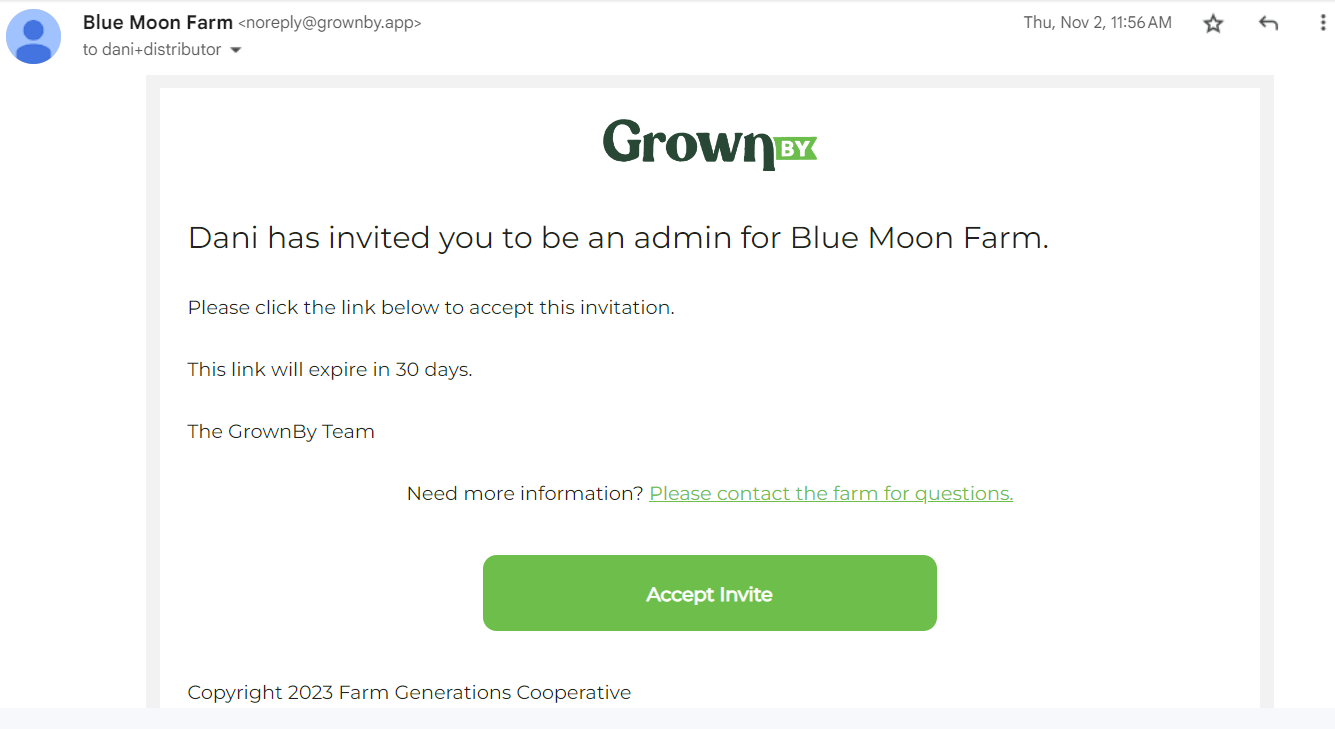
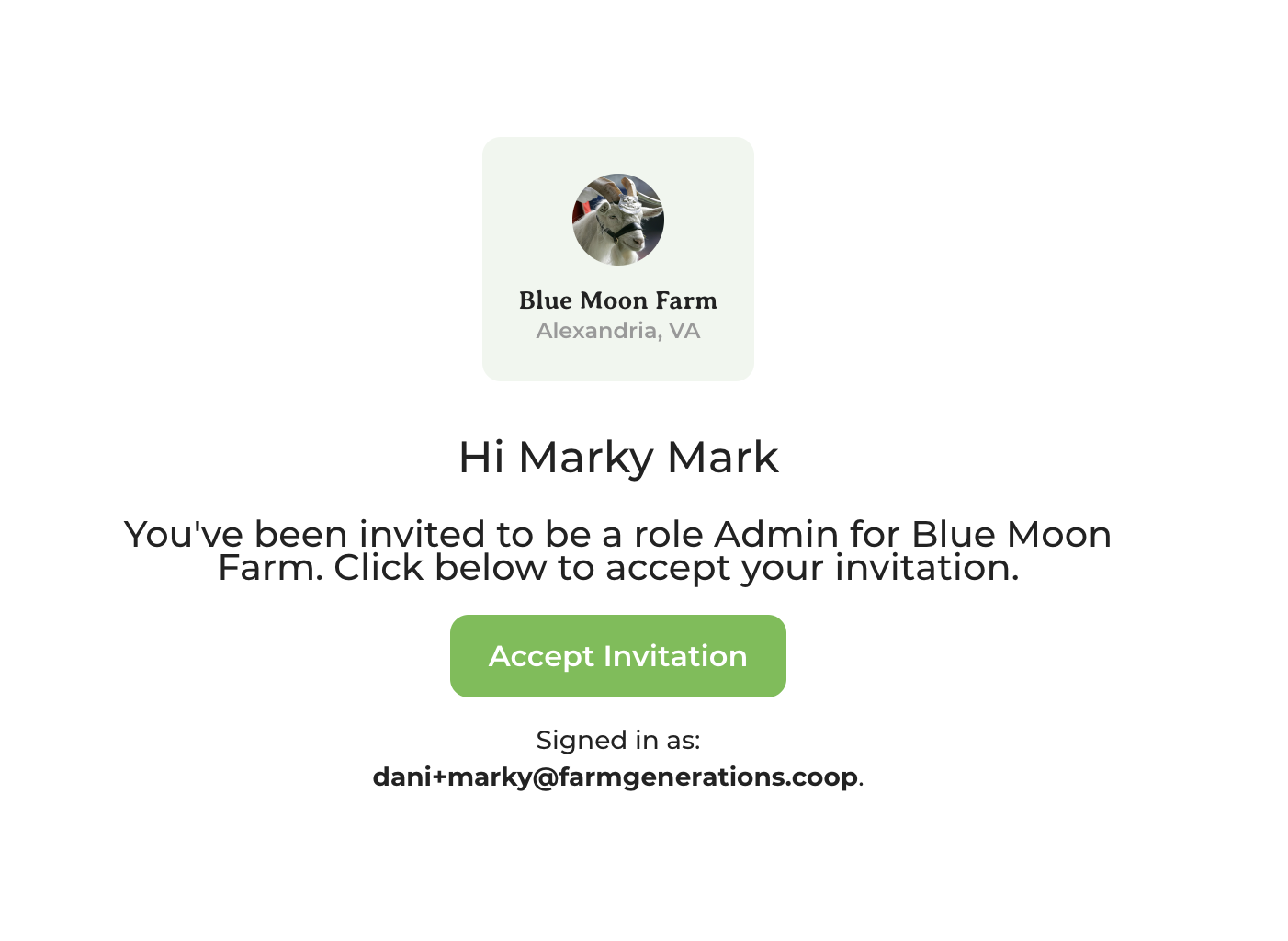
Once they click Accept Invite in the email, they will be asked to create and log in to their new GrownBy account. If they already have an account, they will just be able to log in and then will see a screen with an Accept Invitation button. It looks like this:
Once they've accepted the invitation, they will be able to access whatever parts of GrownBy their role allows.